BEYOND THE BASICS
Creating a Symbol Library
Open
Boardmaker
Go
to File, Import, then Picture.
Locate
picture wanted (it must be file name .wmf,.emf,.bmp)
Graphic
appears in dialog box. Now name & categorize symbol.
Coloring, Modifying, and Creating New Symbols
Open
Boardmaker
Go
to Symbol Finder
Select
symbol to be modified or recolored
Paste
into cell of choice
Click
on the symbol in the cell ready for change
The
options in the tool bar will change giving the options of flip vertical/horizontal, eraser,
pencil tool, rotate/invert tool, fill tool, fill all tool, color palette, and
thickness tool.
Select
fill tool or fill all tool depending on changes desired
Then
click on color palette and select color
Then
carry cursor over to picture and place pour bucket over picture to color and
click
OLD & NEW BOARDMAKER ISSUES
Transfer of old
Boardmaker boards to new Boardmaker
Open new Boardmaker
Go to File, Import, Windows
Board
Then locate board desired and
press okay
Open Mac Boards
into new Boardmaker
Must put Mac boards on windows
format disk via
Export Boards
under File on Mac computer.
Then put windows disk in PC, go
to File, Import,
Mac boards
locate and click on M2W folder
*** Note New Boardmaker Files cannot be opened with Old
Boardmaker
Based on Format by
Elizabeth Rush MA CCC/SLP
Produced by Laura
Lewis, M.S.CCC/SLP
ã Laura Lewis 2001
THE NEW BOARDMAKER
MADE EASY
IT ALL HAPPENS IN ONE WINDOW!!!!!!!
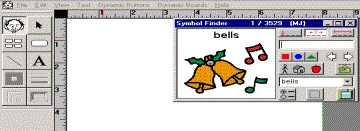
OPEN BOARDMAKER
Open A Board 1 of 3 ways:
New
Board – start from scratch
Saved
Board – work on a board already saved
Template
– work from premade grids or premade templates
Making a New Board
Open
new board
Make
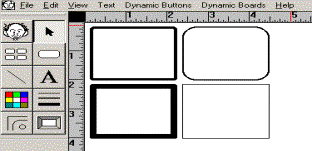
board by using the Cell Tool & Cell Spray Tool.
Modify
cells by using: Corner, Thickness,
Line, & Shadow Tools.
Change
colors of text, cell, & graphics with Color Tool.
Retrieve
symbols for the cell by using the Silly Man Tool. This tool opens the Symbol Finder Window.
BOARDMAKER AND PICTURE COMMUNICATION SYMBOLS ARE PRODUCTS OF MAYER-JOHNSON COMPANY
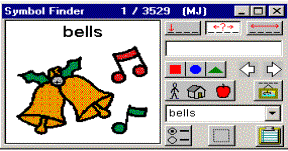
Symbol Finder Window
Use
one of the following to search for symbol:
Type word in text field
Use thumbnail buttons
Use previous/next arrows
Use categories button
Symbol name search options
Symbol
name button changes name permanently.
Give
specific symbol new name using alternate symbol name field.
Settings
button gives you information on specific symbol.
Marquee/Lasso
used to copy parts of symbol.
Clipboard
button used to copy/paste symbol to other programs.
Working from Saved Board or Template
Open
board or template desired.
All
features are the same as previously described.
Use
symbol finder window the same.
Make
changes to text, color, cells, etc. by the following directions.
Text Tool on Draw
Window
Select
text button and then click into cell to type.
Change
font, style, and font size by using text tool in top menu bar.
(Tip: to save font selections, make selections
after the cursor tool has been selected, do not make choices when Text tool is
selected).
Copy a Portion of
a Symbol
In
symbol finder window, click on lasso/marquee button and then outline part of
symbol desired.
Click
into cell of choice to paste outlined part of symbol in cell.
Color a Cell
Click
on cell to color then click on the color palette, make sure the button section
is selected and select desired color.
Color the Cell
Border
Click
on cell to change then click on the color palette, make sure the border section
is selected and select desired color.
Manipulate symbols
Delete Symbol or Text (Now just change in the cell)
Click on item to delete
Press delete or backspace key to
delete item
Resize Symbol
Click on item to be resized
Use the corners to drag box
inward or outward
Release when appropriate size
Group Multiple Symbols in a Cell
Find picture wanted in symbol
finder window, select size
Select part of symbol wanted
with lasso/marquee, use copy button.
Click into cell that the picture
is to be in.
Repeat and reposition/resize as
needed until complete